In the Virtual Hardware tab of the Customize hardware page, configure the main and the additional disks.
To configure the disks
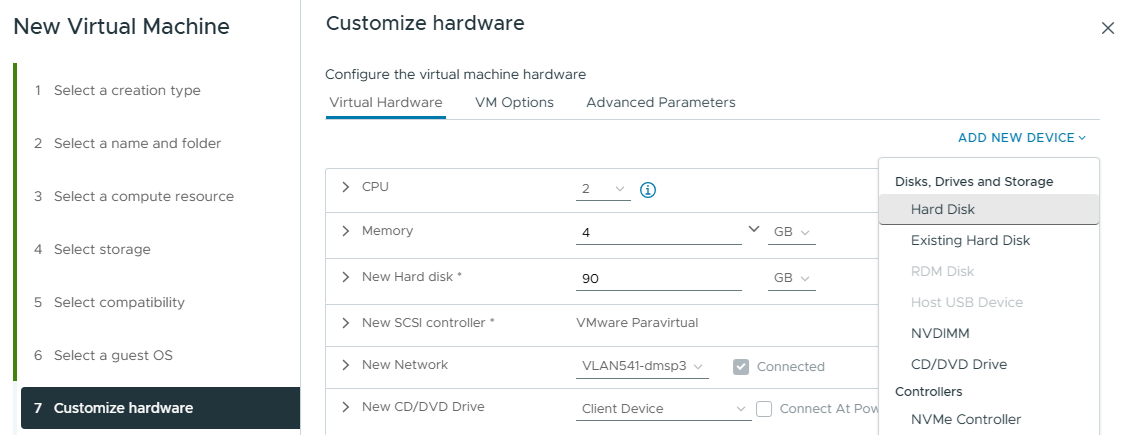
- In CPU, select the number of cores recommended in Machine requirements.
- In Memory, select the RAM size recommended in Machine requirements.
- In New Hard disk:
- Select at least 1 TiB for the main disk, as explained in Machine requirements.
- Set Virtual Device Node to New SCSI controller.
- In New SCSI controller, set Change Type to VMware Paravirtual.
- In New CD/DVD Drive:
- Select the location of the ISO file.
- Check the Connect At Power On box.
- Click ADD NEW DEVICE and select Hard disk to add the additional disk.
- In New Hard disk 2:
- Assign at least 15 GiB for the additional disk, as recommended in Machine requirements.
- Set Disk Provisioning to Thick Provision Eager Zeroed.
- Set Virtual Device Node to New SCSI controller.