See below for the certificate authority to generate a PKCS #12 file containing:
- A key pair generated by Entrust PKIaaS.
- The issued certificate.
- The CA certificate chain of the issued certificate.
To issue a PKCS #12:
Open the following URL in a Web browser.
https://<hostname>/v2/Where
<hostname>is the IP address or domain name selected in General.- Log in to the Certificate Authority user interface as a user with the Owners or Certificate Administrators roles on a partition.
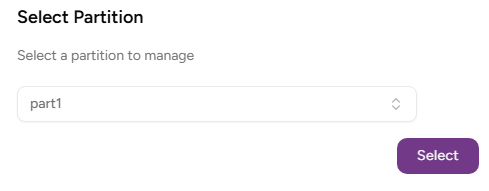
- Select the partition on which to manage certificate authorities and certificates.
Click Certificate Authorities in the sidebar.
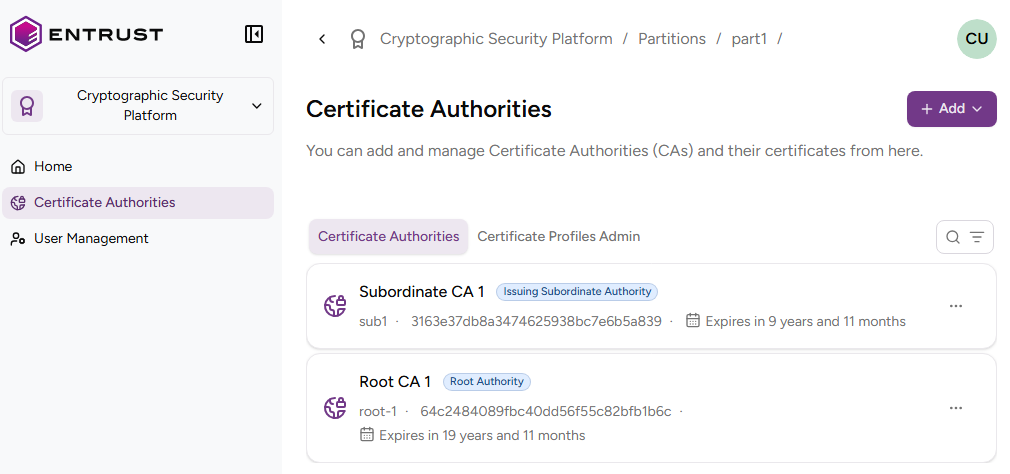
In the Certificate Authorities tab, click the name of the certificate authority that will issue the certificates.
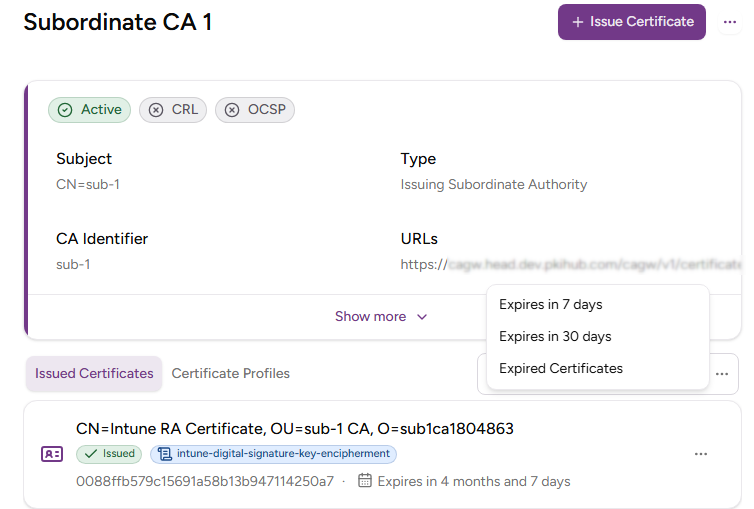
Certificate authority does not provide root certificate authorities with profiles for issuing PKCS #12 files.
Click Issue Certificate.
Select Server-side Generated Key Certificate (PKCS #12).
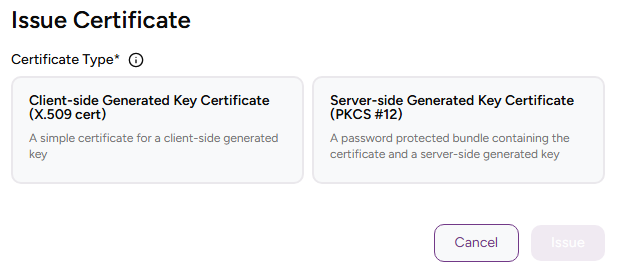
Complete the following values.
Click Issue.
Check the certificate details and click Download your PKCS #12 to download the issued PKCS #12 file.
Certificate Authority does not store the generated key pair in any way. Once you leave this page, you cannot download the PKCS #12 file.
Certificate profile
Select one of the subscriber certificate profiles for the certificate authority to issue this certificate.
This list only includes the certificate profiles selected in the issuing subordinate authority. See Creating an issuing subordinate authority for how to select profiles on CA creation and Selecting CA profiles for how to add profiles to an existing CA.
PKCS #12 Password
Type and confirm a password to protect the contents of the PKCS #12 file.
Subject
Enter a value for each RFC5280 attribute in the certificate subject’s Distinguished Name (DN).
Field | Mandatory |
|---|---|
Common Name |
|
Organization |
|
Organizational Unit |
|
State/Province |
|
Locality Name |
|
Domain Component |
|
Country |
|


Alternatively, you can:
- Toggle the Advanced Subject switch
- Type a Distinguished Name (DN) including additional attributes.
For example, when the certificate subject represents a corporate employee:
CN=John Doe, OU=Sales, O=Example Corp, L=San Francisco, ST=California, C=USWhen the certificate subject represents a corporate domain:
CN=server1.example.com, CN=server2.example.com, OU=IT, O=Example Corp, L=Chicago, ST=Illinois, C=USSubject Alternative Names
Add optional Subject Alternative Names (SANs) for the certificate subject. Typically, SANs extend the domain names or IP addresses set in the Subject field of a TLS certificate. See below for examples.
example.comwww.example.comexample.netmail.example.comsupport.example.comexample2.com93.184.216.342606:2800:220:1:248:1893:25c8:1946