See below for instructions on configuring and deploying CA Gateway using the Management Console.
See Backing up and restoring solutions for the Import Configuration and Export Configuration options.
To configure and deploy CA Gateway using the Management Console
Open the following URL in a Web browser.
https://<machine>:8443/management-consoleWhere
<machine>is the IP address or domain name of the machine hosting PKI Hub.This release changes the URL port to 8443. Update your bookmarks accordingly.
- Log in to the Management Console as a user belonging to a role with CA Gateway management permissions – for example, the initial
adminadministrator user.See Managing identities for how to manage users and roles.
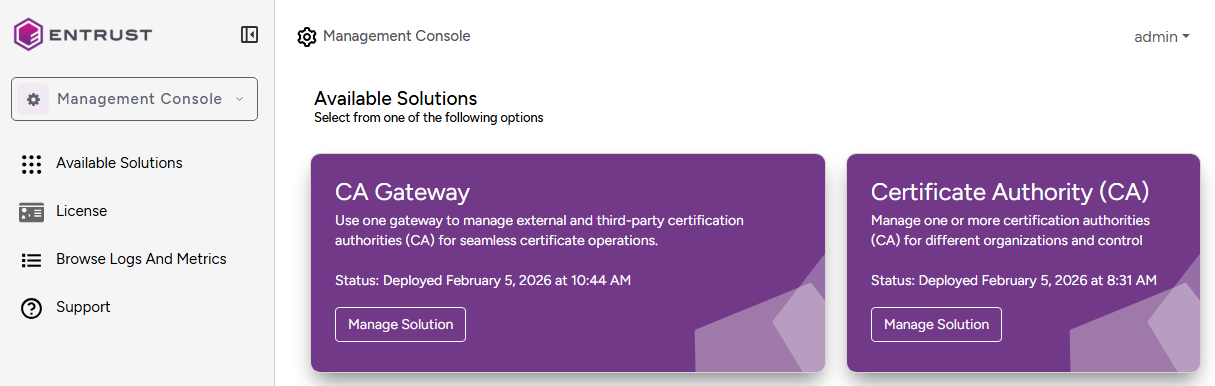
- In the content pane, click Manage Solution under CA Gateway.
Toggle Enable Advanced Configuration to configure the full set of configuration parameters supported by the solution.
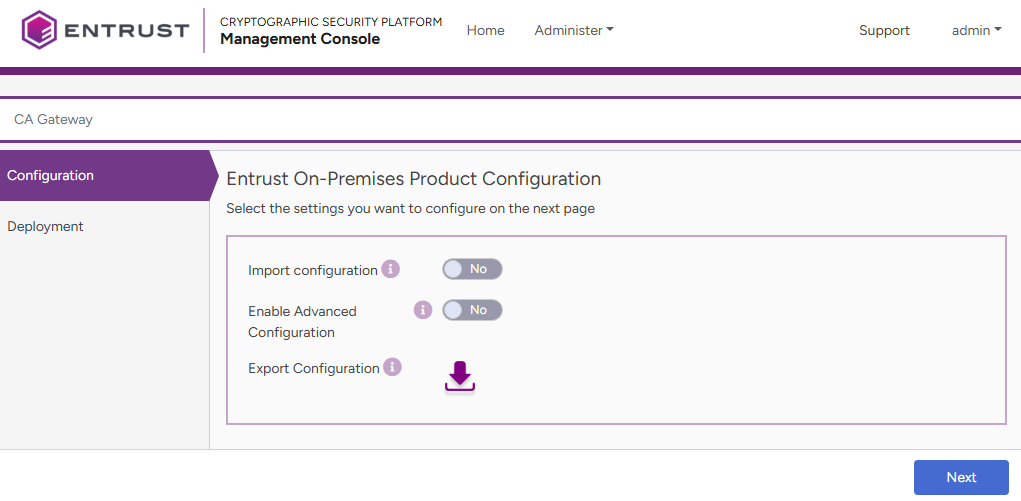
- Click Next.
- Configure the solution settings described in the following sections.
- Click Validate to validate the configured settings.
- Correct any detected configuration errors until Validate displays no warnings.
- Click Submit and wait while PKI Hub uploads the configuration and any attached file, such as a P12 file with authentication credentials.
- Click Deploy.
Do not forget to also click Deploy after each update of the configuration or the license file.