Before You Begin
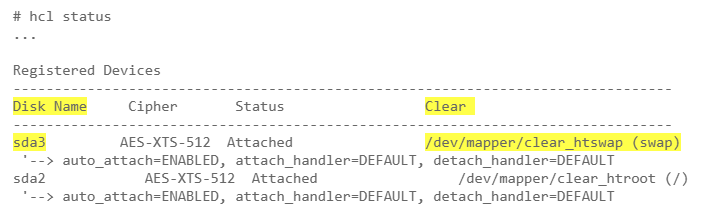
Make sure you know the name of the swap volume and the Cryptographic Security Platform Vault clear text path to it. If you do not, use the hcl statuscommand and look at the Registered Devices section. For example:
Procedure
- Log into the VM as
root. Get the UUID of the swap device by using the
blkid swap-clear-text-pathcommand. For example:# blkid /dev/mapper/clear_htswap /dev/mapper/clear_htswap: UUID="62e5b7ca-cc50-409f-ba7d-5f0645c85588" TYPE="swap"Turn the swap off by entering the command
swapoff -a.# swapoff -av swapoff on /dev/mapper/clear_htswap
Tip: If the
swapoffcommand does not work, applications are probably using the swap file. You can make a temporary swap space and move the swap there until this procedure is finished. For example:# fallocate --length 2GiB /swapfile # mkswap /swapfile # swapon /swapfile
You can also try dropping stopping all main applications and then dropping all caches from memory. For details, see your Linux documentation.
Increase the size of the swap device as desired. How you do this depends on the partition type.
- If this is a GPT partition, you can use
partxas long as you preserve the GUID assigned to the GPT partition. To determine the GUID, use thei partition-numbercommand and look at the "Partition unique GUID" field. For an example of setting the GUID on a GPT partition, see Expanding a Linux Data Partition. - If this is a non-GPT partition, you can use the
fdisk disknamecommand, wheredisknameis the name of the swap device. An example of this process follows.
Non-GPT Partition ExampleFor example, if you want to increase the non-GPT swap partition
sda3by 256M, you would enter:# fdisk /dev/sda WARNING: DOS-compatible mode is deprecated. It's strongly recommended to switch off the mode (command 'c') and change display units to sectors (command 'u'). Command (m for help): p Disk /dev/sda: 17.2 GB, 17179869184 bytes 255 heads, 63 sectors/track, 2088 cylinders Units = cylinders of 16065 * 512 = 8225280 bytes Sector size (logical/physical): 512 bytes / 512 bytes I/O size (minimum/optimal): 512 bytes / 512 bytes Disk identifier: 0x000a3126 Device Boot Start End Blocks Id System /dev/sda1 * 1 131 1048576 83 Linux Partition 1 does not end on cylinder boundary. /dev/sda2 131 1828 13631488 83 Linux /dev/sda3 1828 1980 1223262 82 Linux swap / Solaris Command (m for help): d Partition number (1-4): 3 Command (m for help): n Command action e extended p primary partition (1-4) p Partition number (1-4): 3 First cylinder (1828-2088, default 1828): Using default value 1828 Last cylinder, +cylinders or +size{K,M,G} (1828-2088, default 2088): Using default value 2088 Command (m for help): t Partition number (1-4): 3 Hex code (type L to list codes): 82 Changed system type of partition 3 to 82 (Linux swap / Solaris) Command (m for help): p Disk /dev/sda: 17.2 GB, 17179869184 bytes 255 heads, 63 sectors/track, 2088 cylinders Units = cylinders of 16065 * 512 = 8225280 bytes Sector size (logical/physical): 512 bytes / 512 bytes I/O size (minimum/optimal): 512 bytes / 512 bytes Disk identifier: 0x000a3126 Device Boot Start End Blocks Id System /dev/sda1 * 1 131 1048576 83 Linux Partition 1 does not end on cylinder boundary. /dev/sda2 131 1828 13631488 83 Linux /dev/sda3 1828 2088 2090772 82 Linux swap / Solaris Command (m for help): w The partition table has been altered! Calling ioctl() to re-read partition table. WARNING: Re-reading the partition table failed with error 16: Device or resource busy. The kernel still uses the old table. The new table will be used at the next reboot or after you run partprobe(8) or kpartx(8) Syncing disks.
- If this is a GPT partition, you can use
Run the
partprobecommand to reread the partition table. If this command fails because the device is busy, you need to reboot the VM.# partprobe /dev/sdb Warning: WARNING: the kernel failed to re-read the partition table on /dev/sda (Device or resource busy). As a result, it may not reflect all of your changes until after reboot. # reboot
If you had to reboot the VM in the previous step, turn the swap off again by entering the command
swapoff -a.# swapoff -av swapoff on /dev/mapper/clear_htswap
Recreate the swap device with the same UUID as the old device and turn it back on. For example:
# mkswap -U "62e5b7ca-cc50-409f-ba7d-5f0645c85588" /dev/mapper/clear_htswap
mkswap: /dev/mapper/clear_htswap: warning: don't erase bootbits sectors
        on whole disk. Use -f to force.
Setting up swapspace version 1, size = 2090768 KiB
no label, UUID=62e5b7ca-cc50-409f-ba7d-5f0645c85588
# swapon -a

# swapon -s
NAME      TYPE      SIZE      USED PRIO
/dev/dm-3 partition 2090768   0    -1