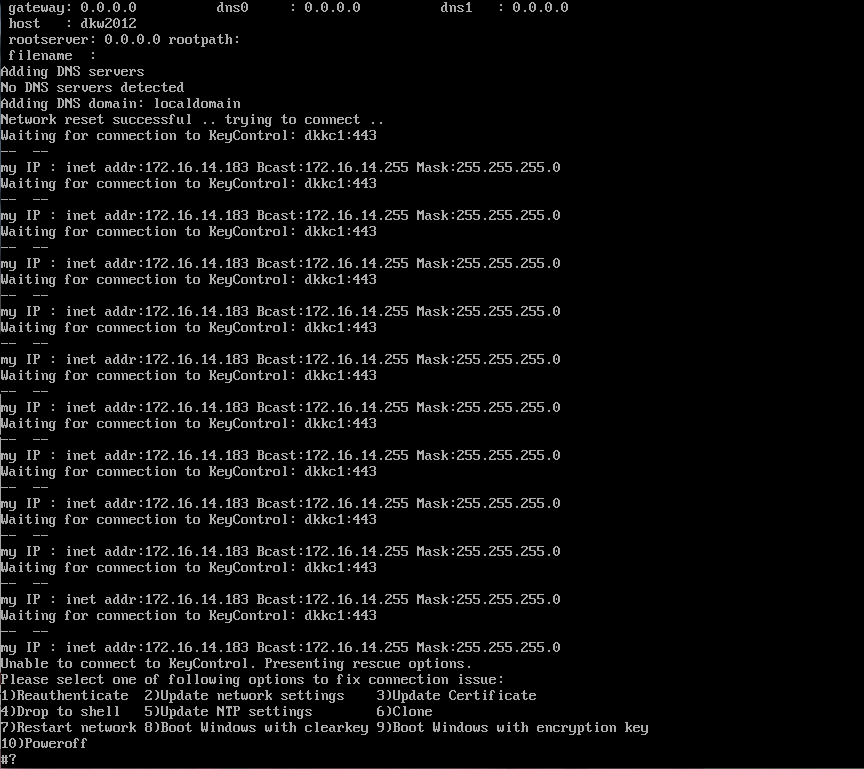
Because encryption keys are never stored locally, a VM with an encrypted boot partition requires access to Cryptographic Security Platform Vault when booting or the attempt will fail. If Cryptographic Security Platform Vault is not available when the system is booted, the VM repeatedly attempts to contact Cryptographic Security Platform Vault for 30 seconds. If contact cannot be established after that time, the VM presents a console menu with a number of options.
When using a shell on a Windows machine to access the bootloader, you may have to use one of the following options:
Use git bash to connect.
Use the following flags to access the bootloader:
ssh -o HostKeyAlgorithms=+ssh-rsa -o PubkeyAcceptedKeyTypes=ssh-rsa -i <machine-name>.key root@<machine-IP>
If you are unable to view the console directly, for example in environments such as Amazon Web Services (AWS), you can access the console using an SSH client. This requires the id_rsa key file generated during the Policy Agent installation. Copy the id_rsa file to the server and then reboot.
Tip: If you need another copy of the id_rsa key file, you can download it from the Cryptographic Security Platform Vault webGUI by selecting the VM on the Cloud > VMs tab and then selecting Actions > Download Bootloader SSH Key.
The console menu options are determined by the environment—some options are available on all platforms while others are not available on platforms like AWS. The full list of options is:
- Reauthenticate—If the credentials of the VM become stale, then it must be re-authenticated with Cryptographic Security Platform Vault in much the same way as a running VM would have to. The most likely reason for this is that the grace period has expired. Another possibility is that the VM's IP address is configured via DHCP, which means it may have changed. We recommend static IP addresses for boot drives, or disabling the IP address check feature in Cryptographic Security Platform Vault. Key retrieval will proceed after re-authentication is successful.
- Update network settings—This takes you back to the network settings screen so that you can update the settings.
- Update Certificate—This allows you to update the VM certificate, if it has expired.
- Drop to shell—Provides a simple recovery shell. Use the command
exitto leave the recovery shell. We strongly recommend that you only use this option when instructed to do so by Entrust Support. - Update NTP settings—This allows you to update the NTP server address.
- Clone—This allows you to clone a VM with an encrypted boot drive. This is similar to
hcl register -cwhile cloning a non-boot-encrypted VM. - Restart network—This option instructs the VM to re-attempt to contact Cryptographic Security Platform Vault and try to retrieve the encryption key again. If no selection is made in this menu after 30 seconds, then this option will be taken automatically.
- Boot Windows with clearkey—This option instructs the Bootloader to boot without an encryption key, and is done automatically if we detect that the boot partition is not encrypted.
- Boot Windows with encryption key—This option instructs the Bootloader to boot Windows assuming that the encryption key has already been fetched.
- Poweroff—Power down the computer.