See below for how to browse and optionally update existing users.
To browse and create users
Open the following URL in a Web browser.
https://<machine>:8443/management-consoleWhere
<machine>is the IP address or domain name of the machine hosting PKI Hub.This release changes the URL port to 8443. Update your bookmarks accordingly.
- Log in to the Management Console as a user with a role granting user management permissions – for example, the initial
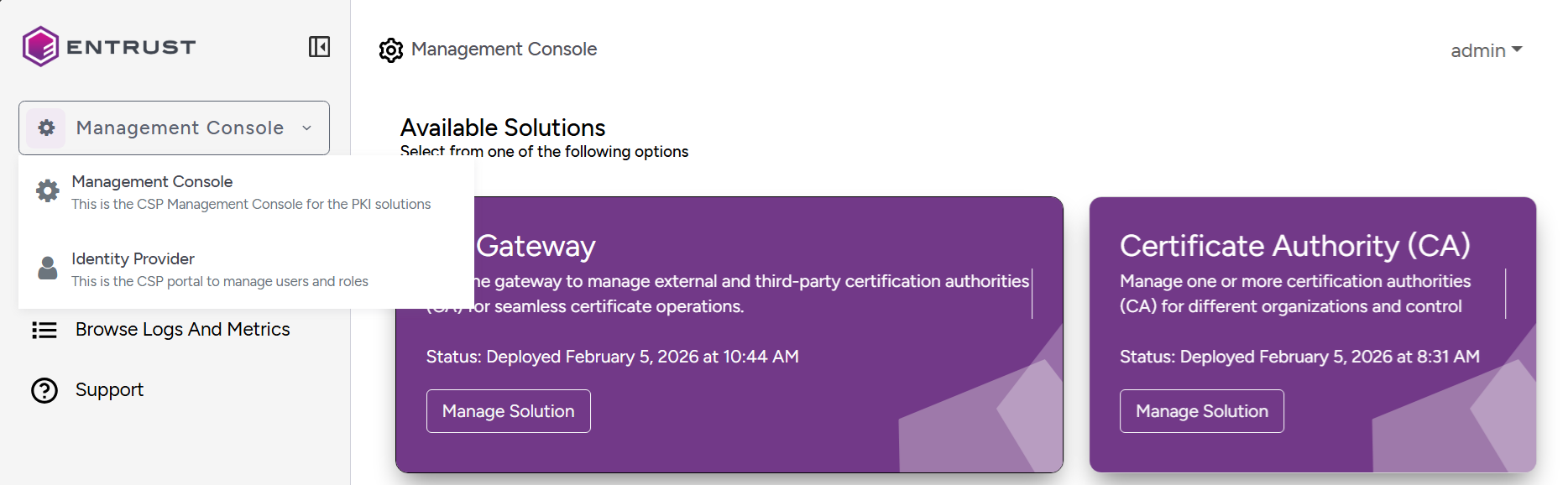
adminadministrator user. Select Management Console > Identity Provider in the sidebar.
Click Users in the sidebar of the user management console.
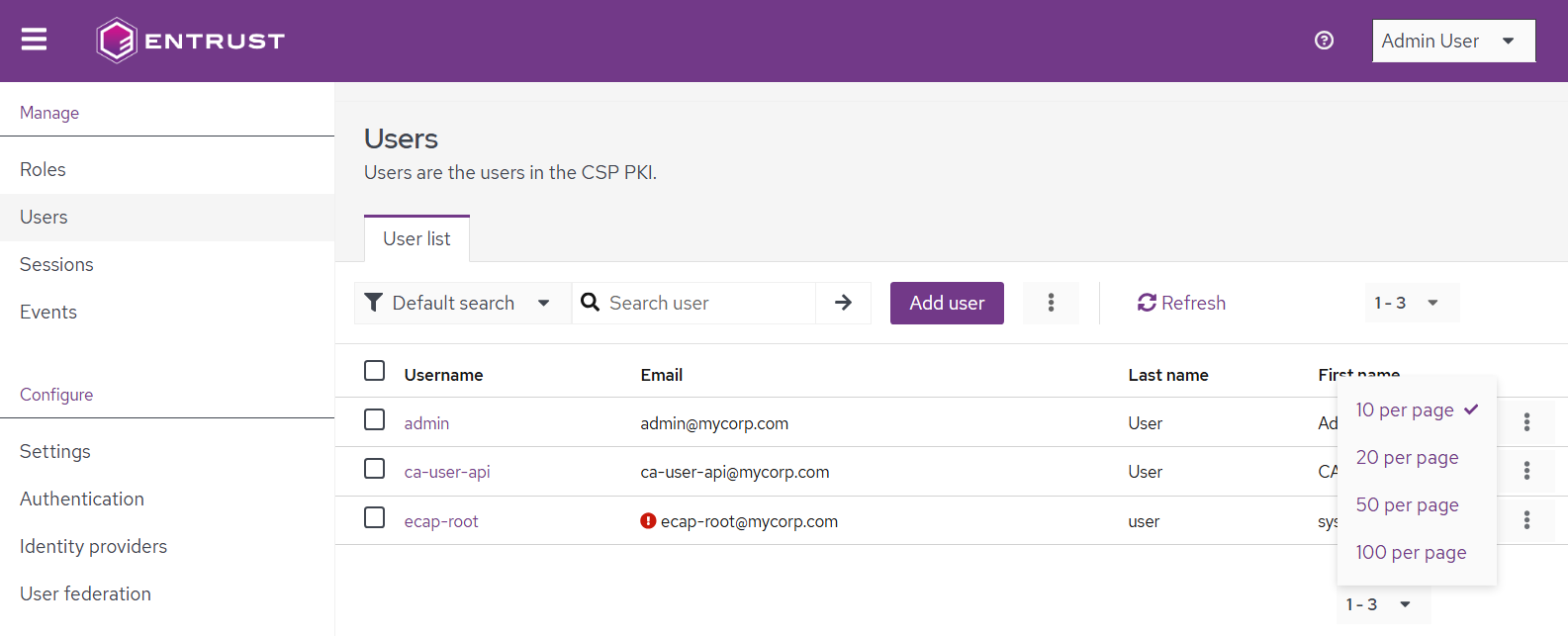
- Use the search options to filter users and select the number of users per page.
- Click a user's name to display their details page.
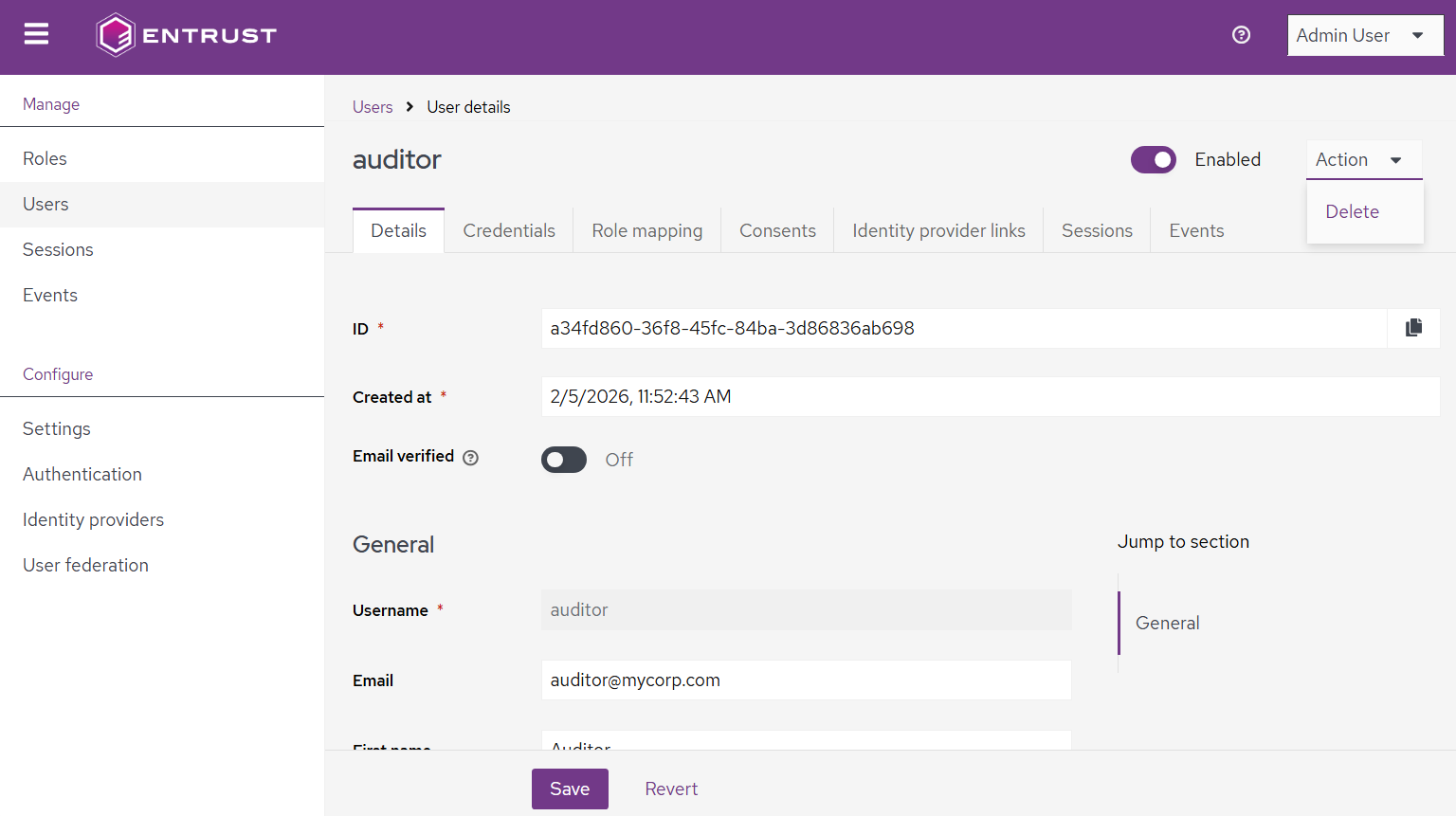
- Browse or update the following user settings.
Details
The user's main details.
Field | Value |
|---|---|
ID | The user's internal identifier generated by PKI Hub |
Created at | The user's creation date |
Email verified | On if the user's email has been verified, Off otherwise |
Username | The user's login name |
The user's email | |
First name | The user's first name |
Last name | The user's last name |
Temporary locked | On if the user has been locked after multiple failed login attempts; Off otherwise . |
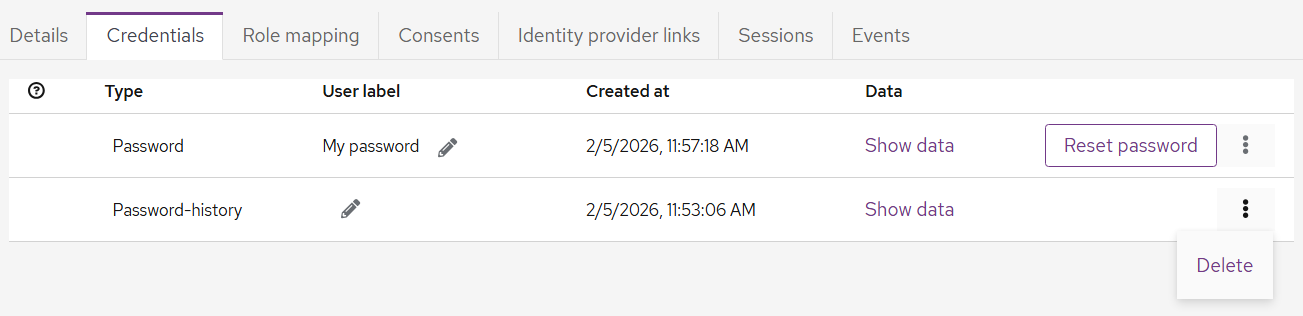
Credentials
The user's login credentials.
- Click Set password to set the user login password
- Click Credential Reset to force a password change.
- Click the three horizontal dots for Password and select Delete to remove the password.
- Click the three horizontal dots for Password-history and select Delete to remove the password history.
See Authentication for details on the password policy requirements.
Role mapping
The list of Roles the user belongs to.
- Uncheck Hide inherited roles to display the roles inherited by the roles currently assigned to the user.
- Click Assign Role to grant a role to the user.
- Select a role and click Unassign to unassign.
Organizations
The organizations the user belongs to.
Consents
The consents granted by client applications, if any.
Identity provider links
The third-party identity providers allowing the user to authenticate in the administration console.
Sessions
A log record of the console sessions started by the user. See Sessions for a description of each field.
Events
A log record of the user and administrative events triggered by the user.
- Select the User events tab to display the details described in User events.
- Select the Admin events tab to display the details described in Admin events.