See below to generate a PKI DB Appliance report for technical support.
To export a support bundle
Open a web browser in the URL obtained when Running PKI DB Appliance.
Do not omit the "https" prefix of the URL.
- Navigate to SETTINGS.
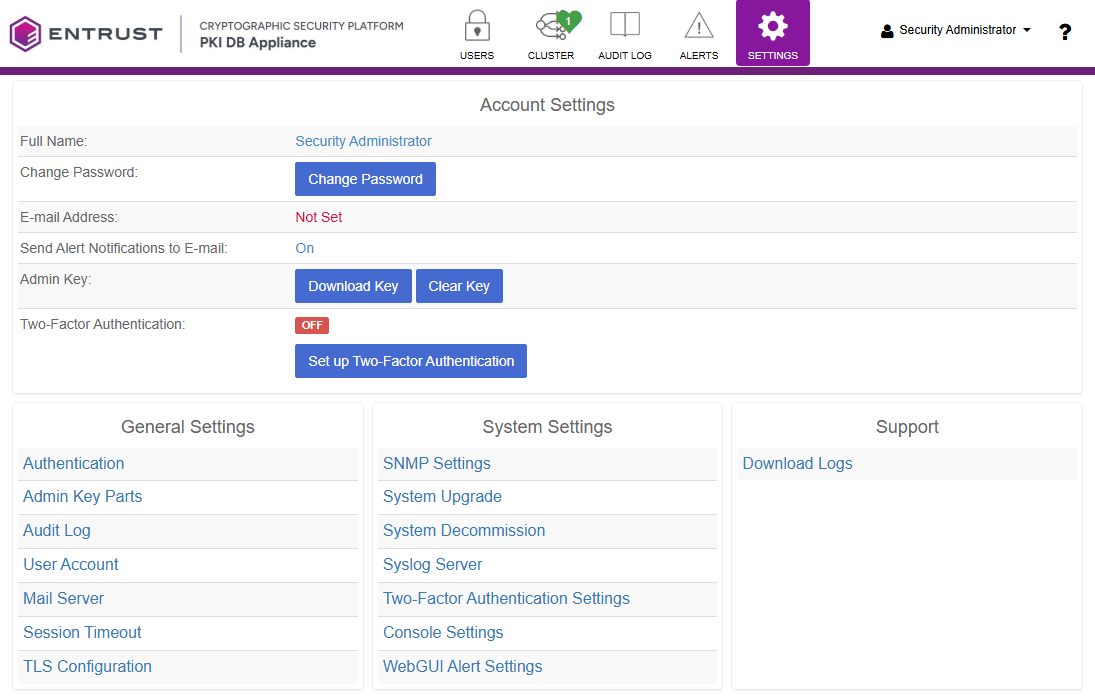
- Click Download Logs under Support.
- Click Create Bundle and configure the following settings.
- Click Create and wait while the process completes.
- Click Download.
Include Audit Log
Include or exclude audit logs from the export. See Audit Log for how to configure audit log recording.
Audit logs record security-relevant events such as user actions, configuration changes, and authentication attempts.
Include All Cluster Logs
Select:
- Yes to include logs from all nodes
- No to include only logs from the local node
Include Core Files
Include or exclude core dump files from the export.
Core files contain memory snapshots generated during system crashes and are used for debugging purposes. Including them may significantly increase the export size.
Passphrase
Optional passphrase to encrypt and protect the exported log bundle.
Save the passphrase in a safe place, as it will be required to decrypt and access the contents.