Follow the steps below to install the PKI Hub ISO image in Proxmox Virtual Environment.
To create a PKI Hub virtual machine in Proxmox Virtual Environment
- Log in to your Proxmox Virtual Environment portal.
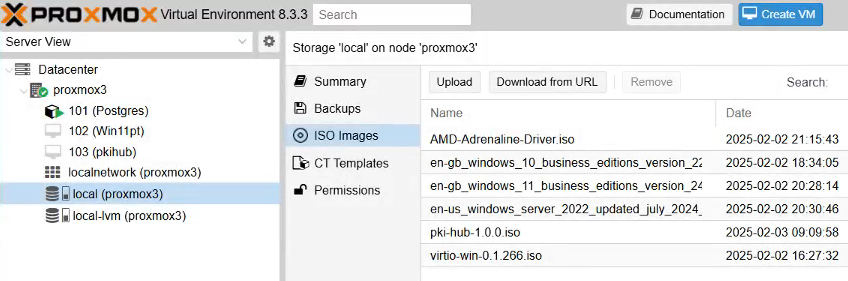
- Select a "local" node of your data center.
- Click Upload in the menu bar.
- Select the PKI Hub ISO file in the Upload dialog.
- Click Upload, then wait for the ISO file to upload.
- Click Create VM to open the machine creation wizard.
In each step of this wizard, select the values described below.
- In the navigation tree, select the new machine identifier.
- Click the Console command to launch the machine.
General
Configure the following settings on this tab.
Field | Value |
|---|---|
Note | The node on which to create the Virtual Machine |
VM ID | The internal identifier of the new Virtual Machine |
Name | A friendly name for the new Virtual Machine |
Resource Pool | A resource pool to which the new Virtual Machine will belong. Optional value. |
OS
On this tab:
- Select the Use CD/DVD disc image file (iso) radio button.
- Select local in Storage.
- Select the uploaded ISO file.
System
On this tab, you can leave the default values.
Disks
On this tab, configure two disks meeting the Machine requirements.
Click the +Add button to add the second disk.
CPU
On this tab, select the number of cores described in Machine requirements.
Memory
On this tab, select the memory size described in Machine requirements.
Network
On this tab, you can leave the default values.