See below for instructions on configuring and deploying Certificate Manager using the Management Console.
See Backing up and restoring solutions for the Import Configuration and Export Configuration options.
To configure and deploy Certificate Manager with the Management Console
Open the following URL in a Web browser.
https://<machine>/management-consoleWhere
<machine>is the IP address or domain name of the machine hosting PKI Hub.- Log in to the Management Console as a user belonging to a role with Certificate Manager management permissions – for example, the initial
adminuser.See Starting up the Management Console for how to manage users and roles.
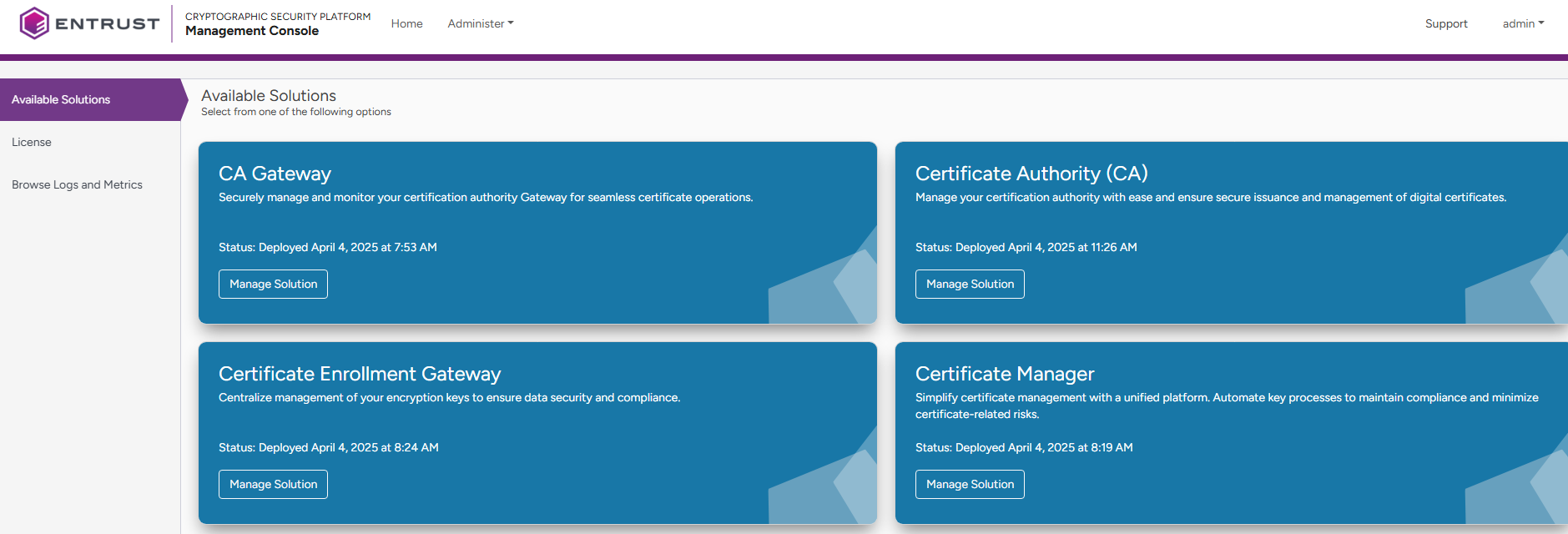
- In the content pane, click Manage Solution under Certificate Manager.
Toggle Enable Advanced Configuration to configure the full set of configuration parameters supported by the solution.
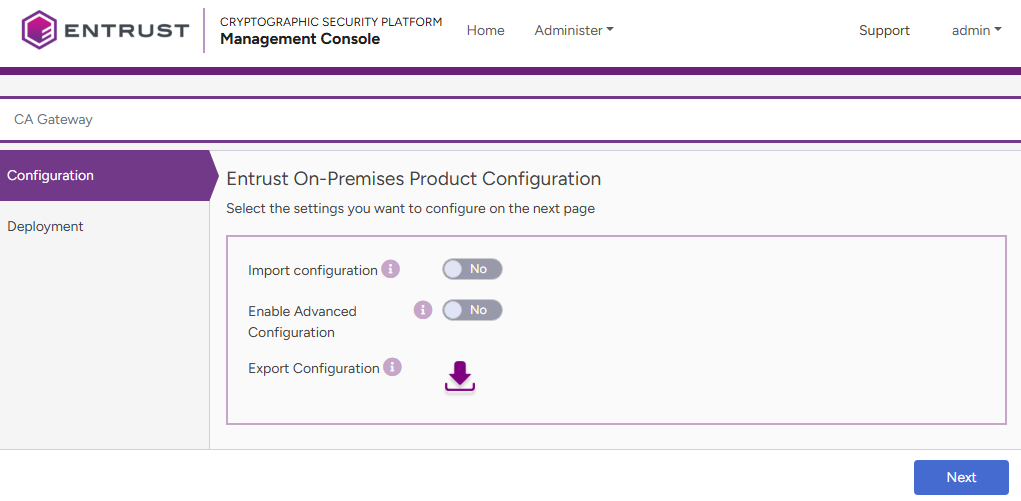
- Click Next.
- Configure the solution settings described in the following sections.
- CM Hostname
- Discovery Scanner version
- Initial Administrator Username
- Initial Administrator Password
- Initial Administrator Email
- Name of the PostgreSQL Database
- Database User Name
- Database User Password
- Host of the PostgreSQL database
- External database port
- SSLMode for the PostgreSQL external database
- CA Certificate(s)
- Click Validate to validate the configured settings.
- Correct any detected configuration errors until Validate displays no warnings.
- Click Submit and wait while PKI Hub uploads the configuration and any attached file, such as a P12 file with authentication credentials.
- Click Deploy.
Do not forget to also click Deploy after each update of the configuration or the license file.
CM Hostname
The base hostname of the Kubernetes Ingress routing to the application.
Mandatory: Yes.
Discovery Scanner version
The version identifier communicated to the Discovery Scanner instances.
The instances will compare this value with the local version and show a local warning if an upgrade is available.
Mandatory: When integrating Discovery Scanner.
Initial Administrator Username
The username of the initial administrator.
Mandatory: Yes.
Initial Administrator Password
A temporary password for the initial administrator. Ensure that this temporary password does not include special characters such as '#', '!', or '*'.
After the initial login, the administrator will be prompted to create a new password that meets a specific set of password strength requirements
Mandatory: Yes.
Initial Administrator Email
The email address of the initial administrator.
Mandatory: Yes.
Name of the PostgreSQL Database
The name of an external PostgreSQL database meeting the Database requirements. The Certificate Manager deployment process will automatically create all the required tables.
Do not merge tables from different solutions or from tables required by the product during installation into a single database, as each solution component requires its own database.
Mandatory: Yes.
Database User Name
The user name of the PostgreSQL database.
Mandatory: Yes.
Database User Password
The user password of the external PostgreSQL database.
Do not include special characters such as "#", "!", or "*" in the user password.
If this password changes in the external database.
- Update the value also on this field of the Management Console.
- Click Submit and wait for the new configuration to apply.
- Click Deploy.
- Open a command line session on any installation node.
- Run the following command.
sudo kubectl get deploy -o name -n certhub | xargs -n1 sudo kubectl rollout restart -n certhub
Mandatory: Yes.
Host of the PostgreSQL database
The IP address or Fully Qualified Domain Name (FQDN) of the database host.
As explained in Database requirements, the SSL certificate for the database host must include the IP address or FQDN of the host.
Mandatory: Yes.
External database port
The connection port with the external PostgreSQL database.
Mandatory: Yes.
SSLMode for the PostgreSQL external database
The SSL mode for connecting with the external PostgreSQL database. Supported values are:
- require
- verify-ca
- verify-full
See https://www.postgresql.org/docs/current/libpq-ssl.html for a description of each mode.
Any supported PostgreSQL mode requires enabling SSL.
Mandatory: Yes.
CA Certificate(s)
The CA certificate for validating the database SSL certificate. Click Select Files to import a file containing this certificate in PEM format and Base64 encoding.
As explained in Database requirements, the SSL certificate for the database host must include the IP address or FQDN of the host.
Mandatory: When the SSLMode for the PostgreSQL external database value is one of the following.
- verify-ca
- verify-full