After you log in to Grafana with the initial administrator's default credentials, you must perform one of the following operations.
For other user management operations, such as creating non-administrative users, see:
https://grafana.com/docs/grafana/v12.0/administration/user-management
The process described in Backing up and restoring does not include any Grafana configuration.
Changing the password of the initial administrator
You can keep the initial administrator by simply changing the default password.
To replace the password of the initial administrator
- Log in to the Management Console.
- Click the Browse Logs and Metrics sidebar command.
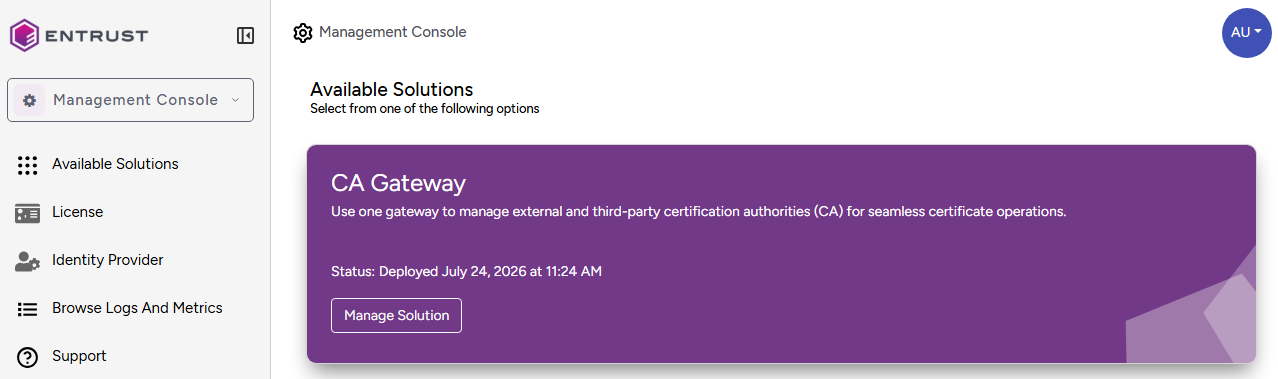
- Log in to Grafana with the
adminusername andchangemepassword. Select Administration > Users and access > Users in the sidebar.
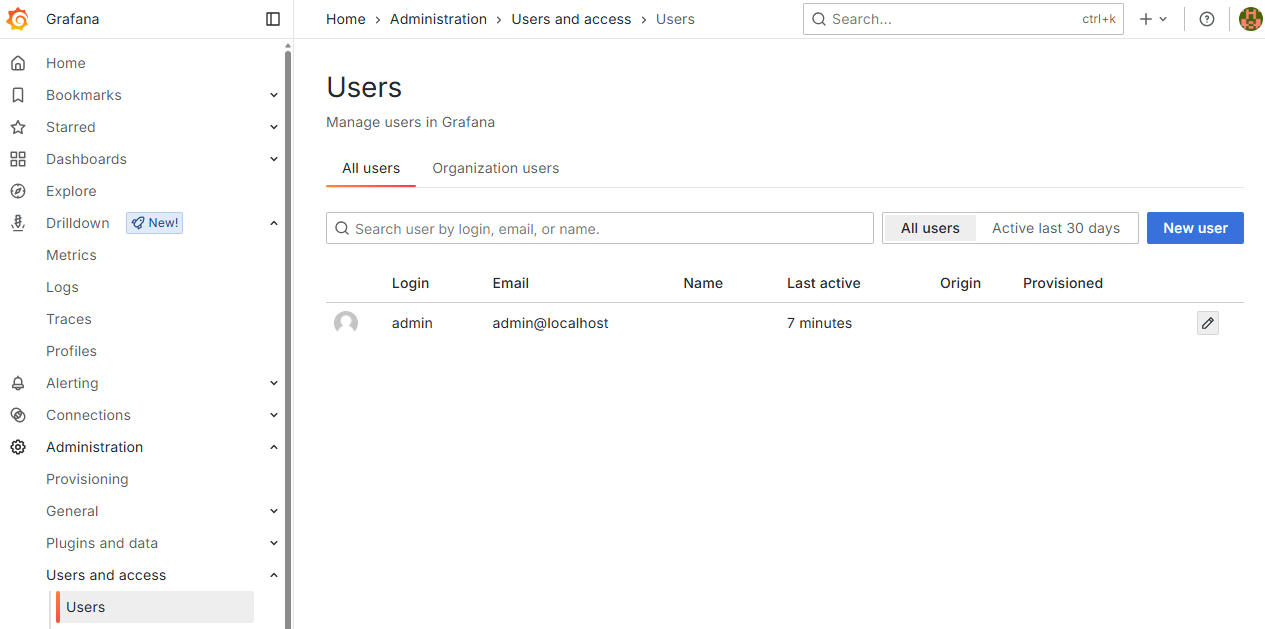
- Click on the pencil icon
 of the admin user to edit the user details.
 - Click Edit in the Password row.
- Enter a new password in the Password field, then click Save.
Replacing the initial administrator
See below to create a new Grafana administrator to replace the initial default one.
To replace the Grafana initial administrator
- Log in to the Management Console.
- Click the Browse Logs and Metrics sidebar command.
- Log in to Grafana with the
adminusername andchangemepassword. Select Administration > Users and access > Users in the sidebar.
- Click New user.
- Fill in the New user form and click Create User.
- In the user details view, click Change under Permissions.
- Set Grafana Admin to Yes.
- In the sidebar, select Administration > Users and access > Users.
- In the Users grid, click the pencil icon of the initial admin administrator.
- In the user details view, click either:
- Delete user to delete this initial administrator.
- Disable user to disable it.