The Cryptographic Security Platform supports an Active-Hot Standby disaster recovery model in which two independent clusters are deployed across separate datacenters. One datacenter is fully active and serves production traffic, while a secondary datacenter is fully provisioned and continuously running at near-production readiness, but does not actively serve users.
This architecture applies to the following solutions deployed on the Cryptographic Security Platform: Certificate Authority (PKI Hub CA), Certificate Manager, CA Gateway, and Time Stamp Authority (TSA). For the OCSP service provided by Entrust Validation Authority (EVA), an Active-Active architecture is also supported — see Deploying and recovering the OCSP service in an Active-Active architecture.
This approach provides fast recovery with minimal downtime, as the hot-standby datacenter is ready to take over immediately without needing service startup or scaling delays. However, services will be briefly unavailable while the hot-standby datacenter is re-deployed as the primary cluster.
Both datacenters share the same database cluster and HSM cluster deployed across both sites.
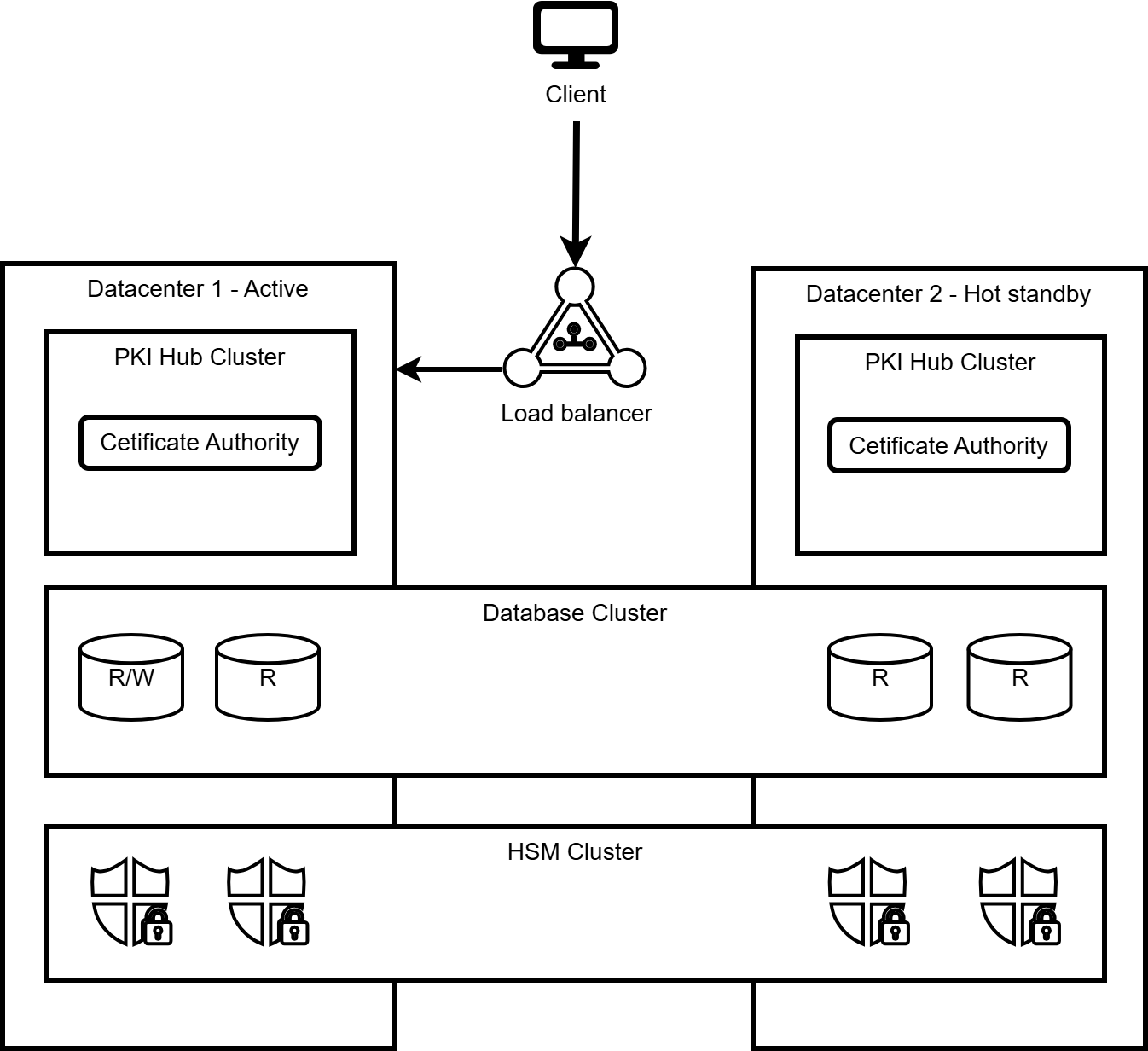
See below for details on deploying services in this architecture.
Architecture components
Both datacenters share the same database and HSM infrastructure.
Component | Deployment |
|---|---|
Load balancer | Redirects end-entity and operator requests to the active datacenter. The client-facing hostname or IP address of both datacenters must be the same and always match: any IP address or hostname used by the deployed solutions to serve client requests (for example, the CDP and AIA fields in certificates issued by the Certificate Authority, the OCSP endpoint offered by PKIHub). The customer must provide and configure this load balancer to meet the requirements of the disaster recovery architecture, following the vendor's instructions. |
Cryptographic Security Platform cluster | One per datacenter |
Supported solutions | Certificate Authority, Certificate Manager, CA Gateway, Time Stamp Authority (TSA) |
Database cluster | This cluster hosts a PostgreSQL database across 4 nodes in 2 datacenters (2 database nodes per datacenter). The primary (read-write) node must be in the active datacenter. In both datacenters, the database must be accessible at the same URL. The customer must provide and configure this Postgres database cluster to meet the requirements of the disaster recovery architecture, following the vendor's instructions. |
Hardware Security Module cluster | Shared across both datacenters |
Datacenter operating state
The active (primary) datacenter:
- Handles all production traffic (e.g., certificate issuance, OCSP responses, timestamping, certificate management)
- Hosts the primary (read-write) database node
The hot-standby (secondary) datacenter:
- Has the Cryptographic Security Platform fully installed and the applicable solutions deployed
- Is configured with the "Secondary cluster" field set to "true", which disables background jobs (such as CRL generation, OCSP signing key renewal, and other periodic tasks)
- Maintains real-time access to the shared database and HSM
- Does not serve user traffic under normal conditions
- Is ready to take over immediately without needing service startup or scaling delays
Configuration synchronization
Solution configuration must be manually synchronized between datacenters. This synchronization is done by applying the same configuration and secrets changes to both clusters, except for the "Secondary cluster" field. The "Secondary cluster" field must be configured to "false" on the active datacenter and to "true" on the hot-standby datacenter. After synchronizing the changes, the affected solutions have to be redeployed.
Deploying services
To deploy services in an Active-Hot Standby architecture:
- Install and configure a Cryptographic Security Platform cluster in each datacenter following the steps described in Starting up PKI Hub. Both clusters must be configured to use the same database cluster and the same HSM cluster.
- On PKI Hub Cluster 1 (active datacenter), deploy the desired solutions (Certificate Authority, Certificate Manager, CA Gateway, and/or TSA) as described in their respective configuration and deployment guides. Ensure the "Secondary cluster" field is configured to "false".
- On PKI Hub Cluster 2 (hot-standby datacenter), import the configuration from PKI Hub Cluster 1, then change the "Secondary cluster" field to "true" and deploy the same solutions.
- Install the stop services script for disaster recovery on both clusters as described in Installing the stop services script.
- Configure the load balancer to direct all traffic to PKI Hub Cluster 1 (the active datacenter).
Recovery process
See below for how to recover the active datacenter system on the passive datacenter
- If the active datacenter is accessible after the disaster, log in to the Management Console in the active datacenter, in the Certificate Authority solution configure the "Secondary cluster" field to "true". Redeploy the Certificate Authority solution. If the Certificate Authority cannot be redeployed, then execute the
stop-services.shscript.
If the active data center is not accessible or if thestop-services.shexecution ends with errors, the failover procedure can still continue. In this situation, the Certificate Authority solution background jobs may temporarily run in both data centers at the same time, which can generate error messages. These error messages are expected, are not harmful, and can be safely ignored.
Optionally, to avoid these messages, change the network configuration to prevent nodes in the active data center from accessing the database. - Configure one of the database nodes on the passive datacenter as the primary (read-write) database node.
- Configure the load balancer to send traffic to the passive datacenter instead of the active one.
- On the passive/hot-standby datacenter, log in to the Management Console and configure in the Certificate Authority solution the "Secondary cluster" field to "false". Redeploy the Certificate Authority solution. The redeployment causes a service outage of approximately 4 minutes.
When completing these steps, the passive/hot-standby datacenter becomes the new active datacenter, and vice versa. - On the passive datacenter (former active datacenter), if the "Secondary cluster" field was not successfully configured to "true", fix the issues and retry until the configuration is saved without errors.
Then, if the network configuration was modified during step 1, restore it to allow nodes in the passive data center to access the database.