Rescue users provide access to a CSP Vault for Secrets when regular vault administrators are unavailable or locked out. A rescue user is set automatically when the vault is created, using the initial administrator, and can be changed later. A rescue user can be a local, AD, or OIDC user, depending on the authentication type configured for the vault.
This page describes how to manage rescue users for a CSP Vault for Secrets:
Prerequisites
Before you begin, make sure that:
- You are a member of the Vault Admin Policy.
- Each user to be added as a rescue user already exists in the CSP vault for Secrets as a local, AD, or OIDC user.
- Each user is listed under Users in the Vault Admin Policy. Rescue users must be a subset of the administrators.
To add a rescue user
- Log in to the Cryptographic Security Platform Vault for Secrets webGUI as a Vault administrator.
- Select Manage > Access Policies. The Manage Access Policies page appears.
- Select Vault Admin Policy. The Edit Access Policy window appears.
- Click the Rescue Users field and select the user you want to add as a rescue user.
Entrust recommends keeping at least two rescue users to maintain access to the vault if one rescue user is unavailable or locked out.
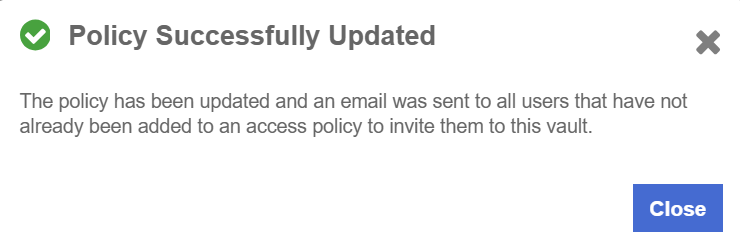
- Select Save and Close. A Vault Admin Policy saved successfully message and a Policy Successfully Updated window similar to the following appear.
- Click Close.
To delete a rescue user
- Log in to the Cryptographic Security Platform Vault for Secrets webGUI as a Vault administrator.
- Select Manage > Access Policies. The Manage Access Policies page appears.
- Select Vault Admin Policy. The Edit Access Policy window appears.
- In the Rescue Users field, click the x icon next to the rescue user you want to delete.
- Select Save and Close. A Vault Admin Policy saved successfully message and a Policy Successfully Updated window similar to the following appear.
- Click Close.