Once installed on your premises, register the PKIaaS Virtual Machine in the Entrust PKIaaS portal.
To register a PKIaaS Virtual Machine
- Click Getting Started in the navigation sidebar.
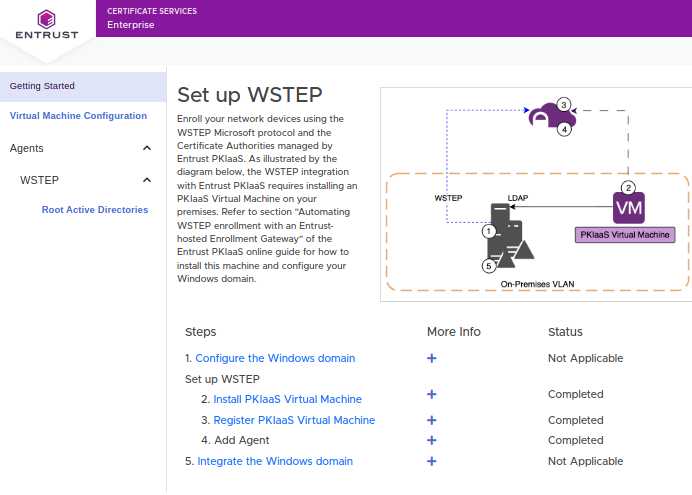
- On the Set up WSTEP pane, click the Register PKIaaS Virtual Machine step to display the Register PKIaaS Virtual Machine pane.
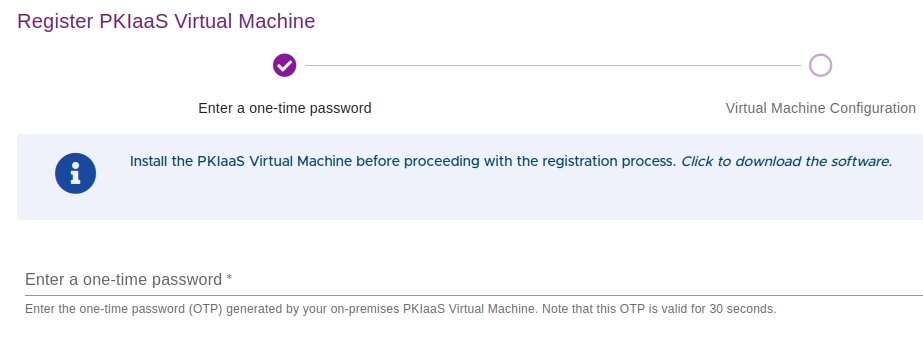
In the Enter one-time password field, enter the one-time password you obtained when completing the installation on the selected platform.
- Click Next and wait while Entrust PKIaaS registers the machine
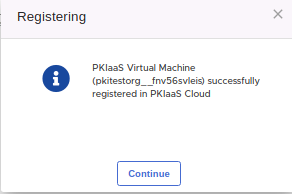
- Click Continue in the Registering confirmation dialog.
- In the PKIaaS Virtual Machine Configuration form, enter a unique name for the machine and an optional description.
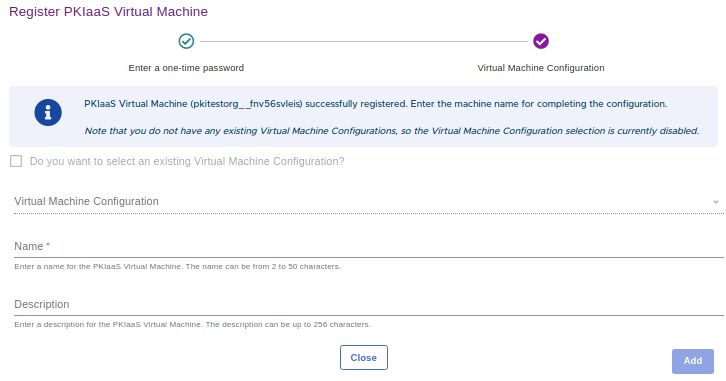
- Click Add to display the registration confirmation.
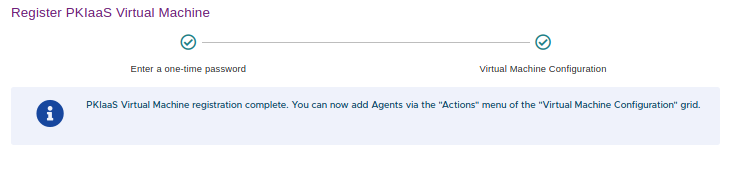
- Click Close.