Use an Azure keyset when CSP Vault for Cloud Keys connects to Azure Managed HSM. With an Azure keyset, the CSP Vault for Cloud Keys can synchronize the External Key Manager (EKM) root CA certificate. When you create an EKM key, the CSP Vault for Cloud Keys creates the corresponding key reference in Azure Managed HSM. Complete the following procedures to configure an Azure keyset with Azure Managed HSM EKM:
Prerequisites
Before you begin, make sure you have completed the following tasks:
- Obtain the common name and the EKM root CA certificate of the CSP deployment from your appliance administrator.
For Azure keysets, grant the following roles to the service principal used to connect to Azure through the Managed HSM Local RBAC configuration window:
Managed HSM EKM Administrator (required in addition to the existing roles below)
Managed HSM Crypto User
Managed HSM Crypto Officer
To sync EKM Root CA Certificate
Sync the EKM Root CA certificate to enable mTLS between Azure Managed HSM and the CSP Vault for Cloud Keys.
- Log in to the Cryptographic Security Platform Vault for Cloud Keys webGUI using an account with Cloud Admin privileges.
- From the menu at the top, select CLOUDKEYS.
- Select the Key Sets tab.
- Select the keyset based on your requirements.
- Select the Managed HSM tab.
- Select the managed HSM based on your requirements.
- From the Actions drop-down list, select Sync EKM Root CA cert. A success message appears, prompting you to restart the webserver for the changes to take effect.
- Go back to the Key Sets tab.
- From the Actions drop-down list, select Restart Webserver. The following Restart Webserver window appears.
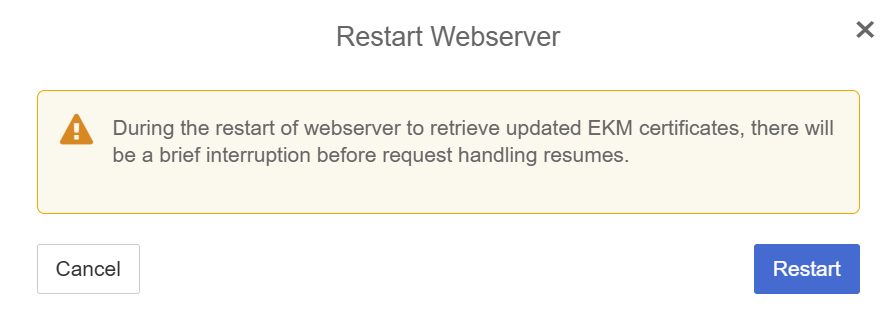
- Click Restart. A success message appears.
This enables mutual Transport Layer Security (mTLS) between Azure Managed HSM and the CSP Vault for Cloud Keys.
To configure Azure Managed HSM for an Azure keyset
Provide the following information when configuring Azure Managed HSM:
- Keyset EKM path prefix: This value combines the publicly routable address of the CSP cluster with the MHSM EKM Path Prefix value from the keyset object. For example:
https://<fqdn-of-csp>/azureekm/<unique-guid>.To obtain the the EKM Path Prefix of the Azure keyset, complete the following steps:
a. From the Key Sets Actions drop-down menu, select the required Azure keyset.
b. Select the Details tab. Details of the Azure keyset appear.
c. Scroll to the EKM Path Prefix field.
- Common name of the CSP cluster
- Root issuing CA certificate for the CSP cluster's external webserver certificate.
For information about configuring Azure Managed HSM, see the Microsoft Azure documentation.
To create an EKM key for an Azure keyset
Create an EKM key for an Azure keyset to provide the key encryption key (KEK) that Azure Managed HSM uses to protect data encryption keys (DEKs).
- Log in to the Cryptographic Security Platform Vault for Cloud Keys webGUI using an account with Cloud Admin privileges.
- From the menu at the top, select CLOUDKEYS.
- Select the CloudKeys tab.
- From the Key Set drop-down list, select the required key set.
- From the Type drop-down list, select Managed HSM.
- From the Actions drop-down list, select Create CloudKey. The Create CloudKey window appears.
- Under Details, complete the following actions:
- Select EKM Key.
- From the Managed HSM drop-down list, select the required Managed HSM.
- In the Name field, enter a name for the CloudKey.
- Click Continue. The Settings section of the Create CloudKey window appears.
- From the Cipher drop-down list, select one of the following options:
- AES-256
- RSA-2048
- RSA-3072
- RSA-4096
You cannot select the operations allowed for an EKM key. Azure Managed HSM EKM supports only
wrapKeyandunwrapKey, and both operations are required.
- Click Continue. The Schedule section of the Create CloudKey window appears.
- Leave all settings unchanged and click Continue. The Alerts section of the Create CloudKey window appears.
- Click Apply. A success message appears, confirming that the CloudKey was created. A corresponding key reference is created in Azure Managed HSM. The key reference does not contain key material. The key material remains in the CSP Vault for Cloud Keys.